Split Image for Printing: Complete Tutorial
Image splitting, also known as "tile printing," is a technique that lets you print large images across multiple regular-sized pages. This tutorial covers everything you need to know about splitting images for printing, from basic concepts to advanced tips.
What is Image Splitting?
Image splitting divides a large image into multiple smaller sections (tiles) that can be printed on standard paper. Once assembled, these tiles create a single large print—perfect for posters, wall art, banners, and architectural plans.
Why Split Images for Printing?
- Cost-effective: Print poster-sized images using your home printer instead of paying for professional printing
- Flexible sizing: Create prints in any custom size, not limited to standard poster dimensions
- Accessibility: No need for expensive large-format printers
- DIY control: Complete control over paper quality, ink quality, and finishing
- Instant results: Print immediately instead of waiting for print shop turnaround
Common Use Cases
- Wall Art & Posters: Print artwork, photography, or graphics for home/office decoration
- Event Signage: Create large banners for parties, weddings, or business events
- Educational Materials: Print large diagrams, maps, or educational charts
- Photography: Enlarge favorite photos for display
- Design Presentations: Create large format mockups or presentation boards
- Long Screenshots: Print full webpage captures or social media posts
- Panoramic Photos: Print wide landscape or cityscape images
Step-by-Step Tutorial: Using Free Image Splitter
Step 1: Prepare Your Image
Resolution requirements: For best results, use high-resolution images. Aim for at least 150-300 DPI at your final print size.
- For a 24×36" poster: Minimum 3600×5400 pixels (at 150 DPI) or 7200×10800 pixels (at 300 DPI)
- Check image dimensions: Right-click image → Properties → Details
- Upscale if needed using AI tools like Gigapixel AI, Topaz Photo AI, or free tools like waifu2x
File formats supported: JPG, PNG, PDF, and most common image formats
Step 2: Upload Your Image
- Visit freeimagesplitter.app
- Drag and drop your image, or click "Select File" to browse
- Wait for upload and processing (instant for most files)
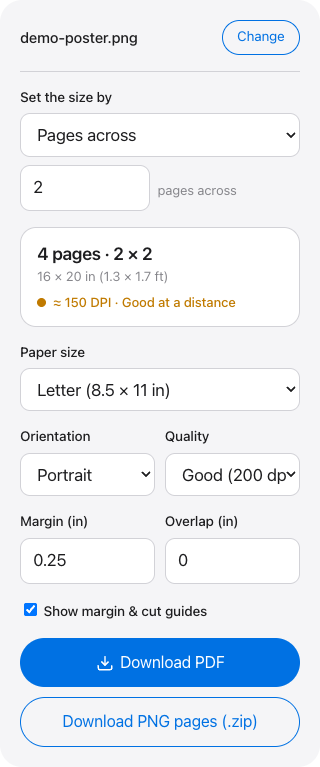
Step 3: Configure Split Settings
Scaling Mode:
- Fit to Page Width: Perfect for tall images (screenshots, vertical posters). Image fills the paper width; height determines number of pages vertically
- Fit to Page Height: Perfect for wide images (panoramas, banners). Image fills the paper height; width determines number of pages horizontally
Paper Size: Choose from 11 options:
- US Standard: Letter (8.5×11"), Legal (8.5×14"), Tabloid (11×17"), Ledger (17×11"), Executive, Folio
- International: A3, A4, A5, B4, B5
Orientation:
- Portrait: Vertical orientation (recommended for tall images)
- Landscape: Horizontal orientation (recommended for wide images)
Margins: Set margins between 0-2 inches. Typical recommendations:
- 0 inches: Maximum image area (wall-to-wall printing for seamless posters)
- 0.25-0.5 inches: Small border for easier assembly
- 0.5-1 inch: Comfortable margin for framing
Step 4: Preview Your Split
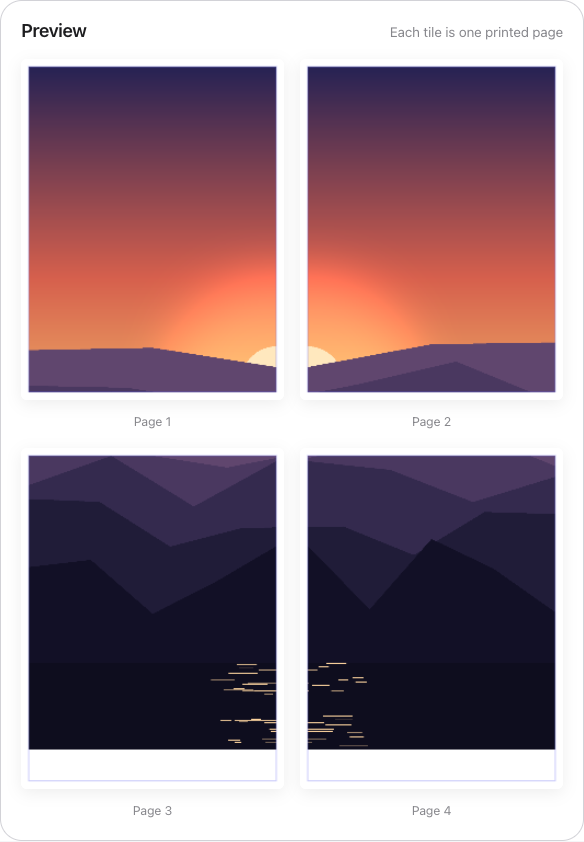
The tool automatically generates a live preview showing:
- Total number of pages required
- How image will be divided across pages
- Each page thumbnail with page number
- Visual representation of margins
Pro tip: Experiment with different settings to optimize page count vs. print size
Step 5: Export PDF
- Click "Export PDF" button
- PDF generates instantly (includes all pages)
- File downloads automatically (filename: yourimagename_split.pdf)
Printing Your Split Image
Print Settings for Best Results
- Print Quality: Select "Best" or "High Quality" in printer settings
- Paper Type: Choose appropriate setting (Plain Paper, Photo Paper, Matte, Glossy)
- Color Management: Use "Printer Manages Colors" for most accurate results
- Scaling: Set to "Actual Size" or "100%" - DO NOT use "Fit to Page"
- Borderless: Enable if your printer supports it and you used 0 margins
Paper Selection Guide
- Standard Copy Paper (20lb): Budget option for temporary prints, signs, templates
- Cardstock (65-110lb): Sturdier for posters, better durability
- Matte Photo Paper: Professional appearance, reduces glare, great for art prints
- Glossy Photo Paper: Vibrant colors, high contrast, ideal for photos
- Canvas Paper: Textured finish for artistic looks
Printing Steps
- Open the exported PDF in Adobe Acrobat Reader (recommended) or your PDF viewer
- Print (Ctrl/Cmd + P)
- Set scaling to "Actual size" or "100%"
- Select page range (print all pages)
- Verify printer and paper settings
- Print all pages
Assembling Your Poster
Materials Needed
- Printed pages
- Scissors or paper trimmer (for trimming margins if needed)
- Clear tape, double-sided tape, or glue stick
- Foam board or poster board (optional, for mounting)
- Ruler or straight edge
- Cutting mat (optional)
Assembly Methods
Method 1: Edge-to-Edge (for 0 margin prints)
- Arrange all pages in correct order on flat surface
- Use double-sided tape on back edges where pages meet
- Press pages together firmly
- Flip over and reinforce seams with clear tape on front if needed
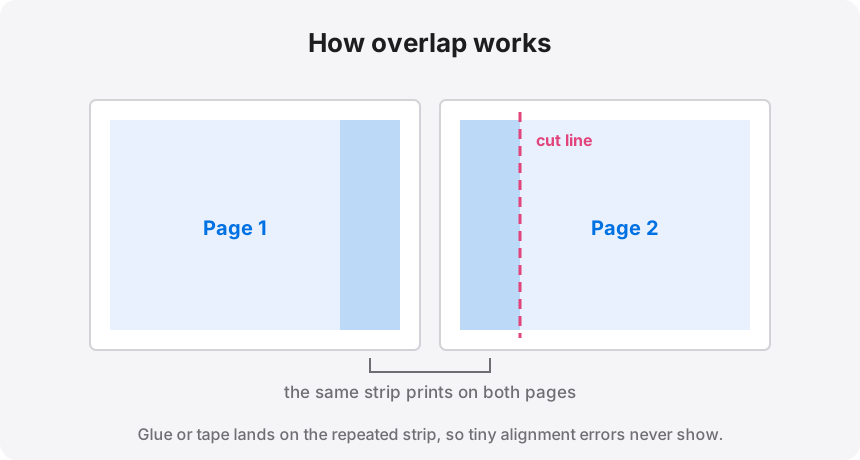
Method 2: Overlap Method (for prints with margins)
- Trim white margins from pages carefully
- Arrange pages and overlap edges by 1-2mm for seamless appearance
- Use glue stick or double-sided tape under overlaps
- Press and smooth each connection
Method 3: Mounted Assembly (most professional)
- Cut foam board to final poster size
- Trim margins from printed pages
- Apply spray adhesive to back of first page
- Position carefully on board and press firmly
- Repeat for adjacent pages, ensuring perfect alignment
- Use brayer or rolling pin to smooth out bubbles
Advanced Tips & Tricks
Optimizing Image Quality
- Start with highest resolution source possible
- Use AI upscaling before splitting if source resolution is low
- Convert images to sRGB color space for accurate printer color
- Sharpen slightly before printing (Unsharp Mask at 100%, radius 0.5-1.0)
Color Management
- Calibrate your monitor if possible
- Print a test page first to check colors
- Adjust brightness/contrast if printed output is too dark
- Some colors (especially bright blues and reds) may shift when printed—test first
Cost Optimization
- Draft prints first: Test with draft quality to verify layout before final print
- Use margins wisely: Larger margins = fewer pages but more waste to trim
- Paper choice: Standard copy paper for tests, premium paper for final
- Ink efficiency: Reduce image brightness by 5-10% to save ink without sacrificing quality
Troubleshooting Common Issues
Problem: Pages don't align properly
- Solution: Ensure printer scaling is set to "Actual Size" (not "Fit to Page")
- Check that all pages printed at same scale
- Verify printer isn't adding automatic margins
Problem: Visible seams between pages
- Solution: Use overlap method when assembling
- Ensure clean, straight cuts when trimming margins
- Consider using 0 margins for seamless edge-to-edge printing
Problem: Image appears pixelated when printed
- Solution: Source image resolution too low
- Use AI upscaling to increase resolution
- Reduce final print size
Problem: Colors look different than on screen
- Solution: This is normal—screens and printers use different color systems
- Enable printer color management
- Use "Printer Manages Colors" in print settings
- Print test pages to preview actual colors
Specific Use Case Examples
Example 1: 5-Page Tall Screenshot
- Image: 2900×14000 px screenshot
- Settings: Fit to Page Width, Letter size, Portrait, 0.25" margins
- Result: 5 pages (1 column × 5 rows)
- Assembly: Stack pages vertically, tape edges
Example 2: Panoramic Landscape Photo
- Image: 12000×4000 px panorama
- Settings: Fit to Page Height, Letter size, Landscape, 0" margins
- Result: 3-4 pages (3-4 columns × 1 row)
- Assembly: Arrange horizontally, seamless join
Example 3: Large Poster (24×36")
- Image: 7200×10800 px high-res artwork
- Settings: Fit to Page Width, Tabloid (11×17"), Portrait, 0.5" margins
- Result: 6 pages (2 columns × 3 rows)
- Assembly: Grid layout, mount on foam board
Beyond Basic Splitting: Creative Applications
- Wall Murals: Split extremely large images across 20+ pages for wall-sized art
- Floor Decals: Print on adhesive paper for floor graphics
- DIY Wallpaper: Create custom wallpaper patterns
- Event Backdrops: Large photo backgrounds for parties or photo booths
- Trade Show Graphics: Quick, affordable display graphics
- Classroom Materials: Large alphabet letters, number charts, educational posters
Conclusion
Image splitting is a powerful technique that democratizes large-format printing. With Free Image Splitter, you can create professional-looking posters, banners, and wall art using just your home printer. The key to success is starting with high-resolution images, choosing appropriate settings, and taking care during assembly.
Whether you're printing a cherished photo, creating event signage, or producing business materials, tile printing offers unlimited creative possibilities without the cost of professional printing services.
Ready to Split Your Image?
Try our free online tool now—no signup required, 100% free, works in your browser.
Start Splitting Images →