How to print an A3 poster on A4 paper
An A3 sheet measures 297 × 420 mm. An A4 sheet measures 210 × 297 mm. Lay two A4 sheets side by side along their long edges and you get 420 × 297 mm — an A3, to the millimetre. That is not luck; it's designed into ISO paper, and it makes A3 the single friendliest poster size to produce on an A4-only printer. Geometrically, an A3 poster already is a two-page A4 split. Free Image Splitter just has to do the cutting.
Two A4 sheets side by side are exactly A3, so set the splitter to two pages across on A4 paper and you get one seam.
On this page
Why the numbers line up: the √2 rectangle
Every ISO A-size is the same shape — a rectangle whose long side is √2 times its short side, about 1:1.414. Cut it in half across the long edge and each half keeps that exact proportion. The whole series is one sheet folded repeatedly: A0 is defined as one square metre, fold it for A1, again for A2, again for A3, again for A4. So "A3 = two A4" is exact by construction — not an approximation the way "two Letter sheets ≈ sort of a Tabloid" is in the US system.
The practical payoff: an A3 design splits into A4 tiles with zero wasted paper and no awkward leftover strip. Every other poster size on this site involves some rounding; this one doesn't.
The margin problem — and your two options
There is one catch. Home printers can't lay ink to the paper's edge; a typical inkjet keeps roughly 6 mm clear on each side, so the usable area of an A4 sheet is about 198 × 285 mm, not 210 × 297. That 6 mm forces a choice:
- Option 1 — two sheets, slightly under size. Each half of an A3 is a full 210 × 297 mm, but only 198 × 285 mm of it can print, so the image shrinks to about 94%. Finished poster: roughly 396 × 280 mm instead of 420 × 297. On a wall nobody spots the difference; an A3 frame will.
- Option 2 — a 2 × 2 grid at 100%. Four A4 sheets, each carrying a quarter of the poster plus white trim borders. Cut the borders away and the assembled result measures a true 297 × 420 mm. The price is two seams instead of one and four cuts instead of two.
My rule: option 1 for anything going on a pinboard or shop window, option 2 for anything going in a frame or that must be genuinely A3.
The near-A3 split, step by step
- Drop your A3 image or PDF into the splitter. It runs entirely in your browser — the file stays on your machine.
- Set the paper size to A4 and margins to about 0.25 in (6 mm).
- Set the sizing driver "Pages across" to 2. Mind the orientation: a landscape A3 splits into two portrait A4 sheets side by side; a portrait A3 splits into two landscape A4 sheets stacked in a column.
- Export the multi-page PDF and print both pages at 100% / Actual size, with the print dialog's paper set to A4. Any "fit" option reintroduces the shrink you just did the math to control.
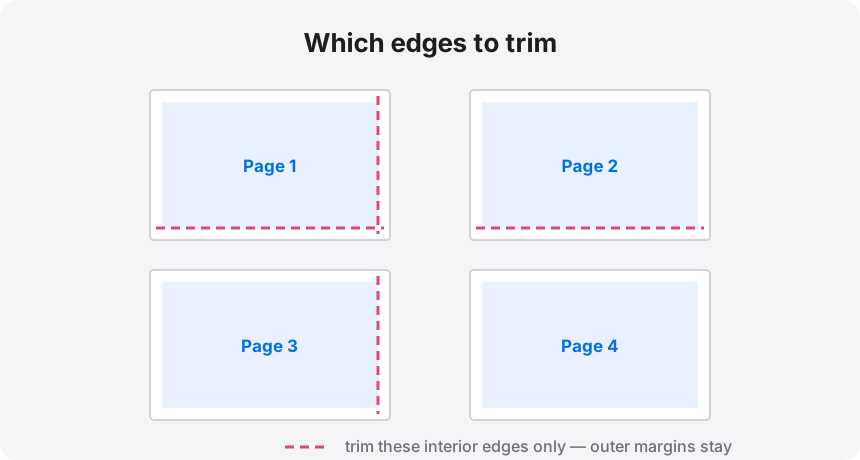
Assembly discipline matters more than cutting skill: trim only the interior edges — the ones where sheets meet — and leave the outer margins in place. They keep the poster rigid while you align the seam, and you square the whole thing off with one final pass at the end.
True A3 size: go 2 × 2 with overlap
For the full-size version, set 2 pages across and 2 down, then add 0.25–0.5 in of overlap. The tool repeats a strip of the image on each adjacent tile and prints cut-line guides along it. Instead of butting two knife-edges together perfectly, you lay one sheet over its neighbour, slide it until the artwork matches, and tape from behind. Slower than the two-sheet split — four sheets, two seams — but the result measures a genuine 297 × 420 mm and drops straight into an A3 frame.
Don't let a Letter file sneak in
UK and EU printers default to A4, but files from US colleagues and US templates are often built for Letter — 215.9 × 279.4 mm, wider and shorter than A4. A Letter-formatted page tiled onto A4 sheets drifts: the finished size lands a few percent off in both directions, and the two directions drift by different amounts, so even the aspect ratio changes if anything along the way "fits" it. Check the source file's page size before you split, and never mix Letter and A4 paper within one poster — every tile in the grid should come off the same stock.
Does your source have the pixels for A3?
A3 is 11.7 × 16.5 inches, so a clean 200 DPI print wants a source around 2340 × 3300 px. You don't have to do that arithmetic yourself: the splitter shows a live effective-DPI readout as you set the size — green at 200+ means crisp, amber (100–199) reads fine from a metre away, red means find a bigger file. PDFs with vector text sail through, since they're re-rendered at 2× zoom rather than stretched.
Two sheets of A4 in the tray?
Load the A3 design, set the paper to A4, and choose the 2-sheet or 2×2 layout. The whole split happens in your browser — nothing uploads.