How to print a large map across multiple pages
Three maps have come off my Letter-size inkjet this year: a topo of a Sawtooth trail loop for a scout pack that needed eight copies, the plat of our lot for a fence-line conversation with a neighbor, and a world map that now covers most of a kid's bedroom wall. Different maps, same printer, same tool — and the same two rules decided whether each one came out sharp or smeared. This guide covers where to get maps you're allowed to print, and the two rules.
Two rules decide a sharp map: start from a source with enough pixels for the wall size you want, and print every page at 100% with overlap so the seams line up.
On this page
Where to get maps you can legally print
Start with the source, because a map you can't legally reproduce — or that only exists as screen pixels — fails before the printer is involved.
- USGS topographic maps are public domain. The topoView site and the USGS Store give away every quad ever published as free GeoPDF downloads, with the geographic names and contour labels intact at full resolution. For US trail and terrain maps this is the best source there is, and it costs nothing.
- OpenStreetMap has an export tab that renders the current view as an image at your chosen resolution. The ODbL license lets you print and share it as long as you keep an attribution line on the map.
- State and county GIS portals hold plats, parcel maps, zoning layers, and floodplain maps as public records. Most offer high-resolution PDF downloads — the plat for my fence project came from the county assessor's site as a crisp vector PDF.
- Skip the Google Maps screenshot. It fails twice: you only capture screen-resolution pixels, which look terrible enlarged, and Google's terms of service don't permit print reproduction anyway. There's always a better source for whatever area you need.
Rule one: maps punish low resolution
A photo degrades gracefully. Print a sunset at 100 DPI and it just goes a little soft — from across the room nobody notices. A map is the opposite case: it's built from hairline contour lines, one-pixel road strokes, and labels set in 6-point type. Below roughly 150 DPI the thin lines start to break up and the small type turns to gray mush, and there's no viewing distance that fixes text you can't resolve.
This is what the live DPI readout in Free Image Splitter is for. It recalculates as you resize: green at 200 DPI and above, amber from 100 to 199, red below 100. For a decorative wall map read from couch distance, high amber is acceptable. For a topo you'll navigate with at arm's length, stay green — if the readout drops out of it, the fix is a smaller print or a higher-resolution export, not hope.
Rule two: the roads have to keep going
Seams that would vanish on a photo are glaring on a map, because your eye follows lines. A highway that jogs two millimeters sideways at a page boundary reads as a mistake from across the room; a contour line that dead-ends at a seam makes the elevation unreadable right where you're checking it.
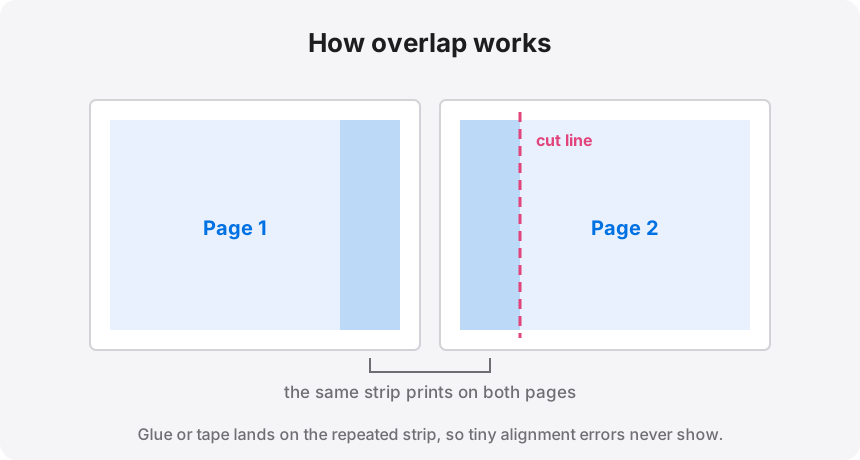
The fix is overlap. Set it to 0.5 inches and the tool prints the same half-inch strip of map on both neighboring pages, with a cut-line guide through it. At assembly you trim the top sheet along the guide and lay it over the repeated strip on the sheet below, matching the road to itself. Alignment stops being a precision task — the line is literally printed twice, and you slide one copy until it sits on the other.
A worked example: 2 × 2 and up
Here's the whole workspace mid-job. Drop the file in, set "Pages across" to 2, and the preview shows the four tiles with the readout summarizing the result: 4 pages, 16 × 20 inches finished, around 150 DPI.
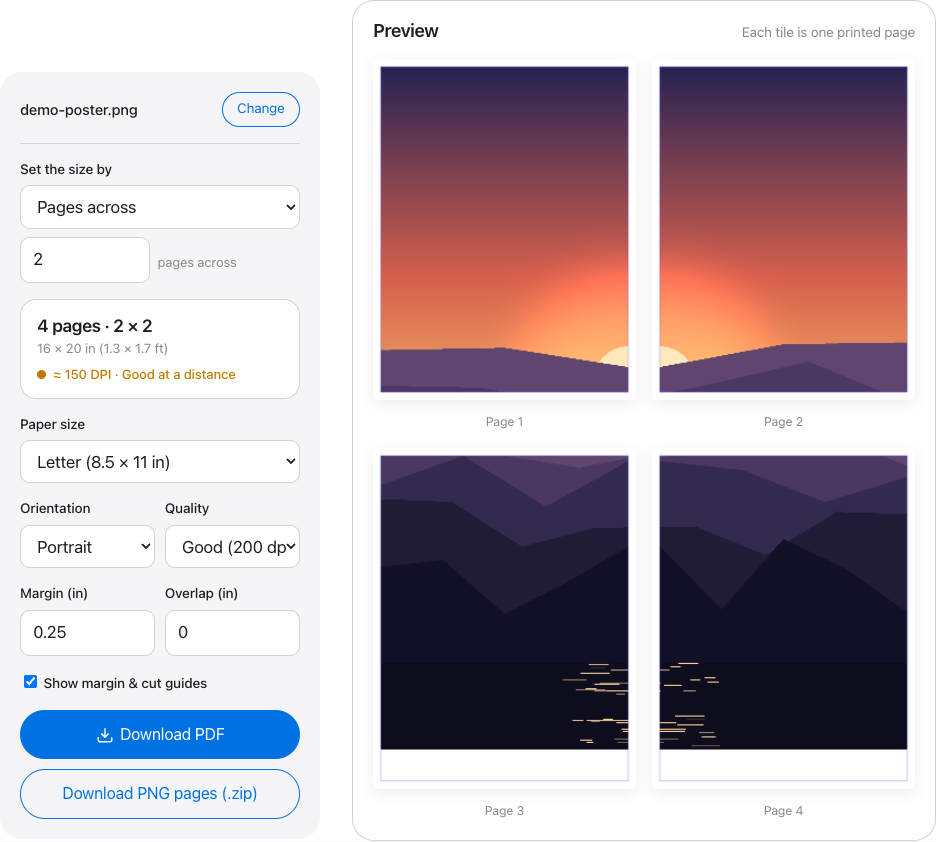
Scaling up is the same move repeated. For the bedroom world map I set the "Width (inches)" driver to 44 instead of picking a grid, and the tool worked out a 6 × 4 layout of Letter pages on its own. Every step up in size divides the same source pixels across more inches, so a file that's comfortably green at 2 × 2 can be amber at 4 × 4 — check the readout each time you resize, not just once at the start.
Two source-file notes. If the county sends you a 12-page PDF packet with the plat buried on page 7, you don't need to extract it first — the tool takes multi-page PDFs and a page picker lets you split just the page you want. And if the only file you can get is genuinely undersized, the separate 2× / 4× upscaler can pull a borderline map back over the 150 DPI floor, though a proper high-resolution export always beats upscaled pixels.
Mounting: wall map or field map
Where the map lives determines the finish. For a wall map, mount the assembled sheets on foam board with spray adhesive, working one page at a time and smoothing outward from the seam. Foam board takes push-pins, so you can mark routes, pin travel photos, or string yarn between waypoints without wrecking the print. For a field map, laminate instead — either pouch-laminate the assembled sections or use self-adhesive sheets — and fold along the seams, where the doubled paper is strongest. A laminated tiled topo survives rain, mud, and being sat on, which is more than the phone it replaces can claim.
From download to wall map
Drop in a topo PDF or map export, add half an inch of overlap, and print at 100%. The whole split runs on your own machine — worth knowing when the map is a plat of your own property.
Nearby guides
Blueprints and long captures tile the same way maps do — line art, seams, and all: