Print a long screenshot or full webpage
A full-page screenshot is the least page-shaped image you will ever try to print. Capture a long article or an exported chat log and you get something like 1440 × 20,000 pixels — a ribbon fourteen times taller than it is wide. Poster advice doesn't apply here: there's no grid, no cross seams, no viewing-distance forgiveness for blurry pixels. There is one column, a stack of pages, and one number that decides if the text survives the trip to paper. Two problems, then: capturing the whole page in one piece, and keeping 16-pixel browser text legible.
Set the width to one page and let the height run over as many pages as it needs; the only number that matters is the DPI the text ends up at.
On this page
Capture the full page first
Screenshotting the visible window ten times and stitching the pieces is the hard way, and the seams never quite line up. Every platform has a real full-page capture:
- Firefox — right-click an empty spot on the page, choose Take Screenshot, then Save full page. Fastest option anywhere, no install.
- Chrome and Edge — open DevTools (F12), press Cmd+Shift+P (Ctrl+Shift+P on Windows), type "capture", and pick Capture full size screenshot. It renders the entire scroll height as one PNG.
- Safari — File → Export as PDF saves the whole page. That's fine as-is: the splitter accepts PDFs directly and a page picker lets you choose which page to split.
- iPhone — take a normal screenshot, tap the preview thumbnail, switch to the Full Page tab, and save.
- Android — after a screenshot, tap Scroll capture (Samsung) or Capture more (Pixel) and it keeps extending downward until you stop it.
One prep step before any of these: scroll to the bottom of the page and back up once, so lazy-loaded images actually render. A capture full of gray placeholder boxes is a capture you'll redo.
What a 1:14 image does to a print job
Take that 1440 × 20,000 capture. Whatever width you print it at, the height is fourteen times that — there is no paper size or grid that changes the ratio. The sane layout is a single column: full printable width, stacked pages running down.
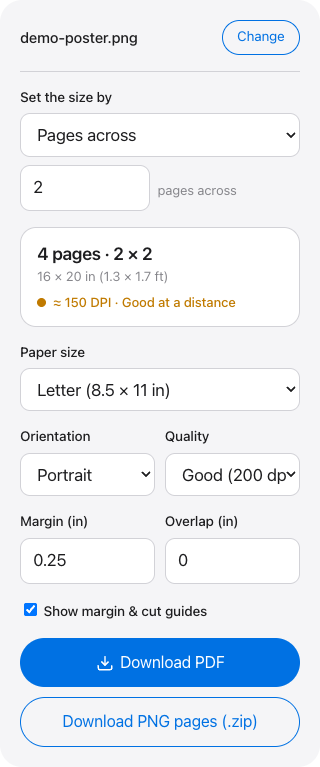
In Free Image Splitter, drive the size by "Width (inches)" set to 7.5 — the printable width of a portrait Letter page with half-inch margins. The tool keeps the split one page across and stacks pages down until the image runs out; a 20,000-pixel capture lands at about 104 inches tall, roughly eleven sheets. The "Pages down" driver works too if you'd rather cap the sheet count, but know the trade: forcing that capture into six pages shrinks the column to about 4.3 inches wide, and the text shrinks with it. For anything you intend to read, drive by width.
The readability math
Browser body text is around 16 pixels, which your screen renders at roughly 12-point size. Print changes the arithmetic: squeeze a 1440-pixel-wide capture into 7.5 inches and you're at 192 DPI, which puts that 16px text at about 6 points on paper — newspaper-small, but crisp, and comfortable at arm's length. The tool's DPI readout confirms this as you type: 192 sits in the amber band, and for screenshots that specific amber is fine.
Trouble starts with narrow captures. An 800-pixel-wide grab — a small browser window, an old phone — stretched to the same 7.5 inches is 107 DPI, and now every 14px interface label prints from too few pixels: soft edges, filled-in counters, genuinely painful to read. Below about 120 DPI, screen text on paper stops being worth the ink. The real fix happens at capture time — widen the browser window, or capture on a Retina/2× display, which doubles every pixel dimension for free. If the moment is gone and the capture can't be retaken, the built-in 2× upscaler can drag it back into usable territory; upscaled pixels never match native ones, but they beat squinting.
Assembly is the easy case
Everything that makes poster assembly fussy is absent here. A single column has no cross seams and no grid to square up — you tape the bottom of page 1 to the top of page 2 and keep going. Set overlap to 0.25 inches when you split: alignment happens along one axis only, so a quarter inch and the printed cut-line guide are all you need. Trim each page along its guide, lay it over the repeated strip on the next sheet, tape the back of the seam, and the whole stack goes together in a couple of minutes flat on a table.
When you shouldn't print the capture at all
The screenshot-and-split method earns its keep when the layout itself is the point — a receipt, an order confirmation, a dashboard, a threaded conversation where who-replied-to-what matters. When it isn't, two shortcuts beat it:
- Plain articles: switch the browser to Reader view and print from there. The browser re-typesets the text at proper print size — real 11-point type instead of a photograph of pixels — and drops the ads and navigation on its own.
- One relevant section: if you need a single exchange from a nine-page chat log, crop the capture in any image editor first. Printing eleven sheets to file one is a waste of a good method.
Ten feet of webpage, one readable stack
Feed the tall capture in, type 7.5 into the Width field, and download a PDF with the pages already in reading order. The image stays on your device the entire time.
Same tool, different shapes
Most other big prints are grids rather than ribbons — these guides cover those: