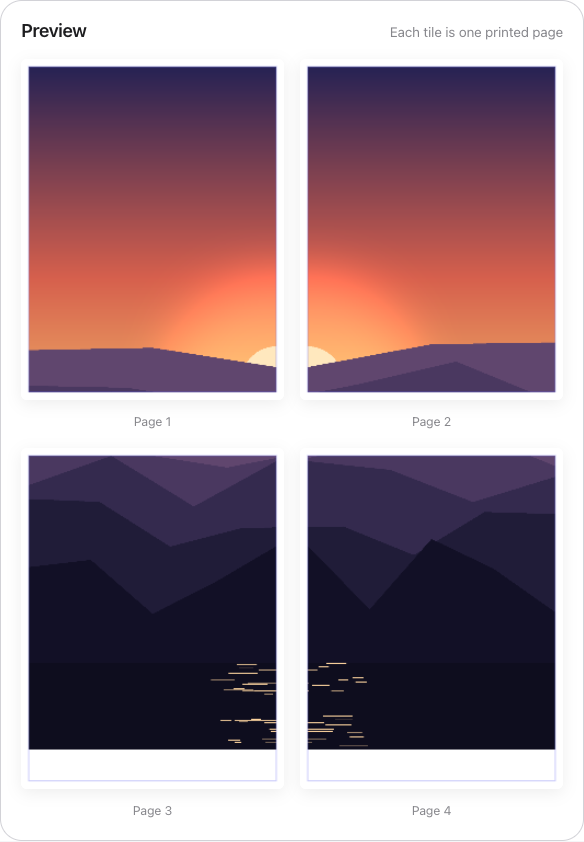
How to Print Instagram Carousel Images and Grid Posts
Instagram carousel posts and grid layouts are popular for visual storytelling, but they exist only in digital form. This guide shows you how to download, stitch together, and print your Instagram carousel images and grid posts as physical posters—perfect for preserving memories, displaying your content, or creating unique wall art.
Understanding Instagram Image Limitations
Instagram Image Resolution Reality
Instagram compresses all uploads, which creates challenges for printing:
- Maximum resolution: 1080×1080 px for square posts, 1080×1350 px for portrait
- Compression: Heavy JPEG compression reduces quality
- Carousel images: Each slide limited to same resolution
- Grid posts: Multiple posts each at 1080px max
- The problem: 1080px is barely enough for an 8×8" print at decent quality (135 DPI)
What this means for printing:
- Small prints (8×10"): Acceptable quality
- Medium prints (11×14"): Noticeable quality loss
- Large prints (16×20"+): Requires upscaling
- Poster size (24×36"): Significant upscaling necessary
Complete Workflow: Instagram to Printed Poster
Workflow Overview
- Download Instagram images at highest quality
- Stitch carousel/grid images into single image
- Upscale the stitched image
- Split for printing using Free Image Splitter
- Print and assemble
Step 1: Download Instagram Images
Method 1: Use Instagram Download Tools (Recommended)
Best Tools for Downloading Instagram Content:
1. Inflact (Web-based)
- URL: https://inflact.com/downloader/instagram/
- Paste Instagram post URL
- Download all carousel images individually
- Free, no signup required
- Gets best available quality from Instagram
2. DownloadGram (Web-based)
- URL: https://downloadgram.com/
- Simple interface
- Works for carousel posts, stories, reels
- Free
3. Insta-Downloader (Web-based)
- URL: https://insta-downloader.com/
- Downloads videos and images
- Carousel support
- No registration
4. 4K Stogram (Desktop Software)
- Desktop app for Mac/Windows
- Batch download from profiles
- Preserves original quality
- Can download entire profiles or specific posts
- Free version available
Method 2: Download from Your Own Posts
If it's your own Instagram content:
- Request Your Data: Instagram Settings → Security → Download Data (includes all original uploads)
- Wait time: Up to 48 hours for data package
- Advantage: Original quality images if you still have them (Instagram returns what you uploaded, not what's displayed)
- Best practice: Keep original photos backed up separately before uploading to Instagram
Method 3: Screenshot Method (Not Recommended)
Last resort for unavailable posts:
- Take high-quality screenshots on your phone/computer
- Crop to remove Instagram UI elements
- Warning: Lowest quality option, will require significant upscaling
- Only use if download tools don't work
How to Get Instagram Post URL
- Open Instagram post in app or browser
- Tap/click the three dots (⋯) at top-right
- Select "Copy Link"
- URL format:
https://www.instagram.com/p/XXXXXXXXXXX/
Step 2: Stitch Carousel or Grid Images Together
For Carousel Posts (Horizontal Stitching)
Option 1: Use Free Online Image Stitching Tools
IMGonline.com.ua
- URL: https://www.imgonline.com.ua/eng/combine-two-images-into-one.php
- Upload images in order (image 1, then image 2)
- Select "Horizontally" for carousel posts
- Adjust spacing (0px for seamless join)
- Download result
- Repeat for additional slides if carousel has 3+ images
PineTools
- URL: https://pinetools.com/merge-images
- Upload multiple images at once
- Choose "Horizontal" layout
- Set gap to 0
- Download combined image
Option 2: Use Photoshop/GIMP (Advanced)
- Open Photoshop or GIMP
- File → Automate → Photomerge (Photoshop) or Filters → Combine → Panorama (GIMP)
- Select all carousel images
- Choose "Reposition" layout (not blend)
- Process
- Flatten image and save
Option 3: Use Python Script (Tech Users)
from PIL import Image
# Load images
images = [Image.open(f'carousel_{i}.jpg') for i in range(1, 4)]
# Calculate total width
total_width = sum(img.width for img in images)
max_height = max(img.height for img in images)
# Create new image
combined = Image.new('RGB', (total_width, max_height))
# Paste images
x_offset = 0
for img in images:
combined.paste(img, (x_offset, 0))
x_offset += img.width
# Save
combined.save('carousel_combined.jpg', quality=95)
For Instagram Grid Posts (Vertical + Horizontal Stitching)
Grid posts require stitching in both directions:
- Download all posts that form the grid (e.g., 3×3 = 9 posts)
- Organize files with clear naming:
row1_col1.jpg,row1_col2.jpg, etc. - Stitch each row horizontally first (use tools above)
- Then stitch rows vertically to create final grid
Grid Stitching Tools:
- PhotoGrid (Mobile App): iOS/Android app specifically for grid layouts
- Canva (Free): Upload images, use grid template, download
- PineTools: Supports both horizontal and vertical merging in sequence
Step 3: Upscale Your Stitched Image
Since Instagram images are low resolution, upscaling is essential for quality prints:
Recommended Upscaling Tools
For Best Quality (Paid):
- Topaz Gigapixel AI: $99 one-time, upscale up to 6x, excellent for photos
- Magnific AI: Subscription-based, extreme upscaling (up to 16x), adds realistic detail
For Budget/Free Options:
- Upscayl (Free Desktop App): Open source, 2-4x upscaling, good quality
- Waifu2x (Free Online): 2x upscaling, works well for illustrations and graphics
- Let's Enhance (Free Tier): Limited free upscales per month
Upscaling Guidelines for Instagram Content
- Target resolution: For 24×36" poster at 150 DPI, aim for 3600×5400 px
- Starting from 1080px: You need ~3-5x upscaling
- Multi-image carousel: Upscale after stitching (upscaling one large image is better than upscaling separate images)
- Save format: PNG for maximum quality (JPEG at 95%+ quality if file size is an issue)
Step 4: Split Your Image for Printing
Now that you have a high-resolution stitched image:
- Visit freeimagesplitter.app
- Upload your upscaled image
- Configure settings:
- Scaling Mode: "Fit to Page Width" for portrait/square images, "Fit to Page Height" for wide carousel stitches
- Paper Size: Choose your paper (Letter, A4, Tabloid, etc.)
- Orientation: Portrait for tall images, Landscape for wide carousels
- Margins: 0" for seamless poster, 0.25-0.5" for easier assembly
- Preview the split result
- Export PDF
Step 5: Print Your Instagram Content
Print Settings for Instagram Images
- Quality: Best/High Quality (essential for upscaled Instagram images)
- Color Management: "Printer Manages Colors"
- Paper Type: Match to your actual paper in settings
- Scaling: 100% / Actual Size (critical)
- Borderless: Enable if using 0 margins and printer supports it
Best Paper Types for Instagram Prints
- Glossy Photo Paper: Best for photos, vibrant colors, high contrast (most Instagram-like appearance)
- Matte Photo Paper: Professional look, no glare, great for graphic posts
- Satin/Luster: Middle ground—slight sheen, fingerprint-resistant
- Cardstock: Budget option for quotes, graphics, temporary prints
Common Use Cases
Use Case 1: Print a 10-Image Carousel Post
- Download all 10 carousel images (each 1080×1080px)
- Stitch horizontally into one 10,800×1080px image
- Upscale to ~32,400×3,240px (3x upscale)
- Split using "Fit to Page Height" on Letter Landscape
- Result: ~30 pages arranged in 1 row × 30 columns
- Assemble horizontally for long horizontal banner
Use Case 2: Print a 3×3 Instagram Grid
- Download 9 posts forming the grid (each 1080×1080px)
- Stitch into 3240×3240px grid (3 rows × 3 columns)
- Upscale to ~9,720×9,720px (3x upscale)
- Split using "Fit to Page Width" on Letter Portrait
- Result: 9 pages (3×3 grid)
- Assemble into perfect square poster
Use Case 3: Print a Single Portrait Post at Poster Size
- Download image (1080×1350px portrait)
- Upscale to 4,320×5,400px (4x upscale)
- Split using "Fit to Page Width" on Letter Portrait
- Result: ~4-6 pages vertically
- Assemble into tall portrait poster
Creative Ideas for Instagram Print Projects
Memory Wall
- Print your favorite Instagram posts from a special year/trip
- Create a collage wall of memories
- Mix different sizes for visual interest
Carousel Storytelling Banner
- Print a meaningful carousel as a long horizontal banner
- Perfect for before/after sequences, tutorials, or travel stories
- Hang above a desk or couch
Instagram Grid Poster
- Print your carefully curated grid layout
- Showcase your Instagram aesthetic in physical form
- Great for photography portfolios or visual branding
Quote Graphics
- Print inspirational quotes you've shared
- Create motivational wall art for home office
Business Content
- Print infographic carousels for physical presentations
- Create physical marketing materials from Instagram content
- Trade show displays using your best Instagram graphics
Troubleshooting Instagram Print Issues
Problem: Printed image looks pixelated
- Cause: Insufficient upscaling
- Solution: Increase upscale factor (try 4x-6x instead of 2x-3x)
- Use better upscaling tool (Topaz Gigapixel vs. free tools)
- Reduce final print size
Problem: Seams visible between stitched images
- Cause: Misalignment during stitching, or different exposures
- Solution: Re-stitch with 0px spacing
- Use Photoshop "Photomerge" with "Blend Images Together" option
- Manually adjust brightness/color of individual images before stitching
Problem: Image quality worse than expected
- Cause: Instagram compression, low source quality
- Solution: Download from multiple sources and compare quality
- Check if you have original pre-Instagram upload version
- Use "Sharpen" filter in photo editor before printing
- Accept limitations—Instagram is optimized for screens, not print
Problem: Colors don't match what's on Instagram
- Cause: Instagram filters, screen vs. print color differences
- Solution: Instagram applies filters and color adjustments—printed version shows "true" colors
- Adjust saturation/vibrance by +10-20% before printing
- Print test page first, adjust if needed
Problem: Can't download someone else's carousel post
- Cause: Private account or download tool limitation
- Solution: Request permission from content creator
- Use multiple download tools (some work better than others)
- Screenshot as last resort (expect lower quality)
Legal and Ethical Considerations
Your Own Content
- You own your Instagram posts—print freely
- Can use for personal or commercial purposes
Others' Content
- Personal use (printing for yourself): Generally acceptable as fair use
- Commercial use or public display: Requires permission from creator
- Selling prints: Copyright infringement without explicit permission
- Best practice: Ask permission or use only your own content
Brands and Logos
- Instagram posts containing trademarked content may have restrictions
- Personal home use typically safe, commercial use requires licensing
Maximizing Quality: Advanced Tips
Tip 1: Use Original Photos, Not Instagram Downloads
- If you have originals from before uploading to Instagram, use those instead
- Will always be higher quality than downloaded Instagram versions
- Recreate layout using originals
Tip 2: Apply Instagram Filters in Photo Editor
- If printing your own content and you have originals, apply Instagram-like filters in Photoshop/Lightroom
- Gives you Instagram aesthetic with original high-res quality
Tip 3: Upscale Individual Images Before Stitching (Sometimes)
- For grid posts with very different image types, upscale individually
- Allows tailored upscaling settings per image
- Then stitch upscaled versions
Tip 4: Add Borders Between Grid Images
- When stitching grid posts, add small white borders (10-20px) between images
- Creates Instagram-like appearance in physical form
- Easier to see individual posts
Tip 5: Print Smaller Than You Think
- Instagram images don't upscale as well as high-res photos
- For best quality, aim for 11×14" or 16×20" rather than 24×36"
- View from 3+ feet away for larger prints (imperfections less visible)
Conclusion
Printing Instagram carousel images and grid posts transforms ephemeral social media content into tangible keepsakes. While Instagram's compression and resolution limits present challenges, the workflow of downloading, stitching, upscaling, and splitting makes poster-sized prints achievable.
The key to success is managing expectations—Instagram images will never match the quality of professional high-resolution photography—but with proper upscaling and printing techniques, you can create meaningful physical prints that preserve memories and showcase your visual storytelling.
Whether you're printing a travel carousel, a carefully curated grid, or inspirational quote graphics, turning your Instagram content into posters adds a new dimension to your digital creations.
Ready to Print Your Instagram Content?
Upload your stitched and upscaled Instagram images to split them for printing.
Split Instagram Images Now →