Split an image to print on 8.5 x 11 paper
Letter paper is 8.5 x 11 inches. Your printer will not use all of it — about 8 x 10.5 inches actually takes ink, and that quarter-inch border on each side is the number that decides how your finished poster measures up. Everything else about tiling onto Letter follows from it.
Letter paper prints about 8 × 10.5 inches per sheet after a 0.25 in margin, and every poster size you can make on it follows from that number.
On this page
What one Letter sheet actually gives you
A sheet measures 8.5 x 11 in. A typical inkjet or laser keeps roughly 0.25 in clear on every side, leaving about 8 x 10.5 in of printable area. Tile four sheets in a 2 x 2 grid, trim the interior edges, and the finished poster is around 16 x 21 in — not 17 x 22. The paper you bought is not the paper you print.
This is why butt-joining always lands a few percent under target. It is not a flaw in the split; it is the printer's mechanical grip on the page. You have two ways to deal with it: accept it, or use overlap and set the finished size directly instead of the page count.
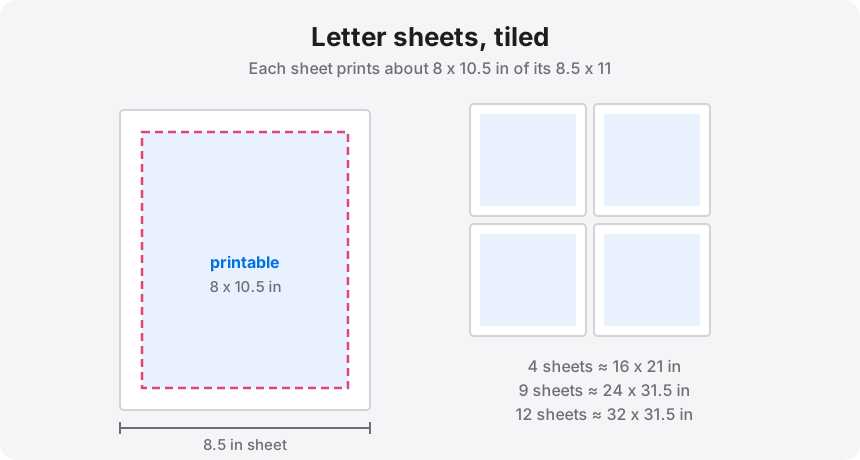
How many sheets for the size you want
Butt-joined, after trimming, on a printer with quarter-inch margins:
- 4 sheets (2 x 2) — about 16 x 21 in. Good for a small wall piece or a child's drawing blown up.
- 6 sheets (2 x 3) — about 16 x 31.5 in. An awkward shape for frames, useful for door-height artwork.
- 9 sheets (3 x 3) — about 24 x 31.5 in. Close to a 24 x 36 poster if you set the size by width rather than page count.
- 12 sheets (3 x 4) — about 24 x 42 in, or 32 x 31.5 in depending on orientation. This is the standard route to a full 24 x 36.
If your target is a frame size — 18 x 24, 24 x 36 — do not count sheets. Set the sizing driver to Width (inches), type the number, and let the tool decide the grid. It will tell you the page count before you print anything.
The split, step by step
- Drop the image or PDF into the splitter. It runs in your browser; the file never uploads.
- Set paper size to Letter (8.5 x 11 in) and orientation to match how you loaded the tray.
- Set margins to 0.25 in. If your printer does borderless, you can go lower — but test one sheet before committing twelve.
- Choose pages across or a finished width, and read the live page count and DPI readout above the controls.
- Add 0.25 in of overlap for four to six sheets, 0.5 in for nine or more.
- Export the multi-page PDF and print at 100% / Actual size. In most print dialogs this means turning off "Fit to printable area", which is on by default and will quietly shrink every tile.
Letter is not A4, and mixing them shows
A4 is 210 x 297 mm; Letter is 216 x 279 mm. A4 is narrower and taller. They look interchangeable in the tray and are not: a file laid out for one and tiled onto the other drifts by a few percent, and it drifts by different amounts horizontally and vertically. If you are in the US and someone sends you an A4 PDF, set the tool to Letter and let it re-tile — do not print an A4-formatted job on Letter stock and hope.
The same rule applies within one job: every tile in a poster should come off the same stock. Finishing the last three sheets on whatever was left in the drawer is how a poster ends up with one seam that will not close.
Resolution at Letter scale
Each Letter tile prints about 8 x 10.5 in. At 200 DPI that is 1600 x 2100 px of source per sheet — so a 3 x 3 grid wants roughly 4800 x 6300 px total, and a 12-sheet poster wants more still. Splitting never invents detail; it cuts the original at full size and hands each piece to a sheet.
The DPI readout is the honest check. Green at 200 and up is sharp in the hand. Amber from 100 to 199 looks good from a metre. Red means the print will be visibly soft, and you should either upscale first or choose a smaller finished size.
Print one tile before you print twelve
Print a single corner sheet. Measure the printed area with a ruler and confirm it matches what the tool said. Two minutes and one sheet catches a scaling setting that would otherwise waste an entire poster's worth of ink — and a scaled tile is not obvious until you try to join it to its neighbour.
Letter in the tray?
Load your image, set Letter paper and a page count or finished width, and download the split. Everything runs in your browser.